Setting up your accountMenyiapkan akun Anda
Cucianku is a cloud-based laundry management system. Each business gets its own subdomain (e.g. yourshop.cucianku.com) with a fully isolated database. No software to install — everything runs in the browser.
Cucianku adalah sistem manajemen laundry berbasis cloud. Setiap bisnis mendapatkan subdomain sendiri (mis. tokoandasendiri.cucianku.com) dengan database yang terisolasi sepenuhnya. Tidak perlu instalasi — semuanya berjalan di browser.
Sign up for a free trialDaftar uji coba gratis
yourshop.cucianku.com. Add it to your phone's home screen as a PWA for quick access — the system works offline too.
URL toko Anda selalu tokoandasendiri.cucianku.com. Tambahkan ke layar beranda ponsel sebagai PWA untuk akses cepat — sistem juga bekerja offline.
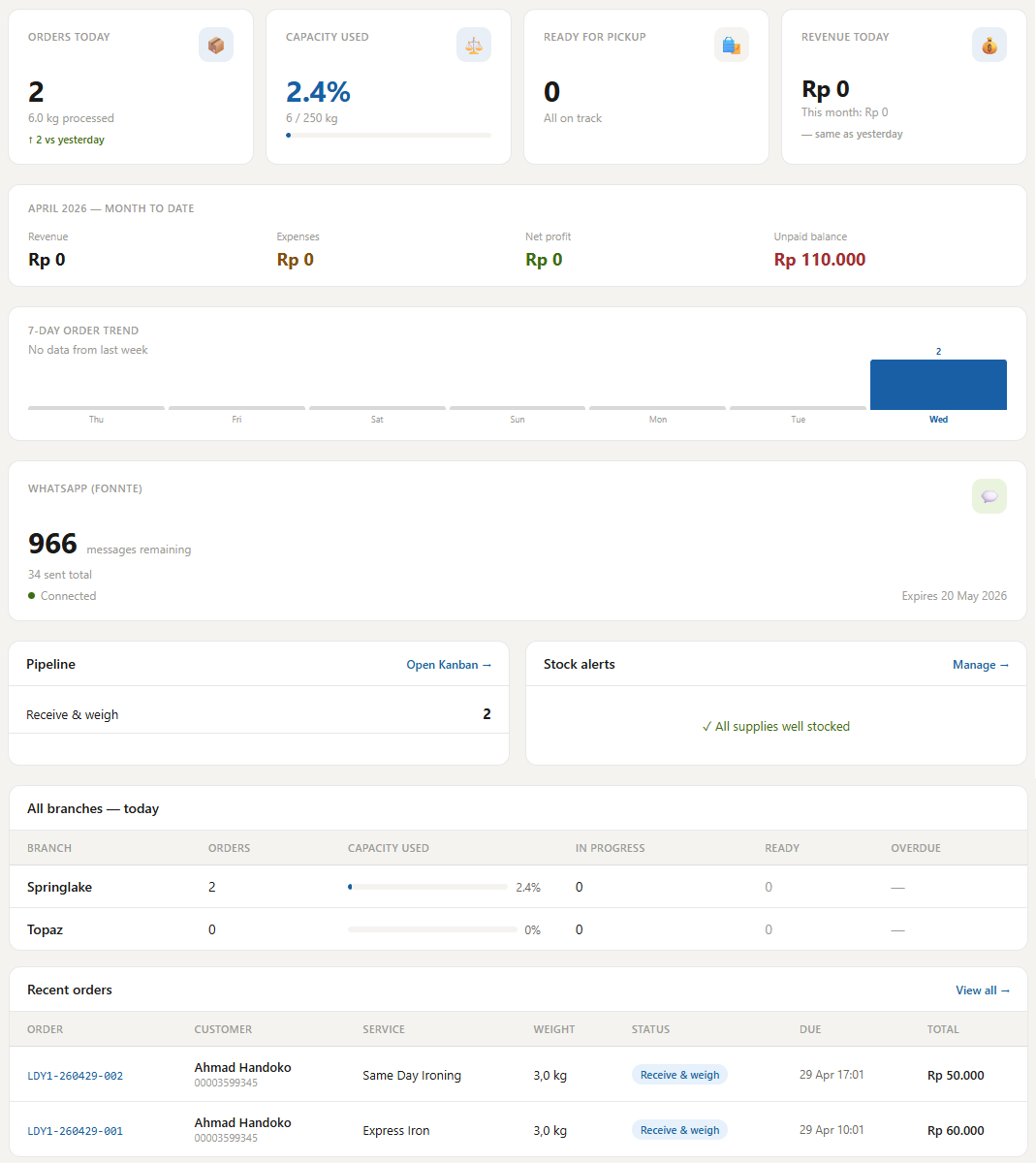
The four interfacesEmpat antarmuka
Staff roles & accessPeran & akses staf
Every staff account is assigned one of four roles. Roles control which parts of the system that person can access.
Setiap akun staf diberikan salah satu dari empat peran. Peran mengontrol bagian sistem mana yang dapat diakses oleh orang tersebut.
| RolePeran | AccessAkses | Typical usePenggunaan umum |
|---|---|---|
| Super Admin | Everything — all branches, all settings, all reportsSemua — semua cabang, semua pengaturan, semua laporan | Business ownerPemilik bisnis |
| Branch AdminAdmin Cabang | Full access within their assigned branchAkses penuh di cabang yang ditugaskan | Branch managerManajer cabang |
| POS OperatorOperator POS | POS counter only (create orders, record payment)Kasir POS saja (buat pesanan, catat pembayaran) | Counter staffStaf kasir |
| OperativeOperatif | Kanban board only — identified by PIN, no login requiredPapan Kanban saja — diidentifikasi dengan PIN, tidak perlu login | Washing / ironing staffStaf cuci / setrika |
POS CounterKasir POS
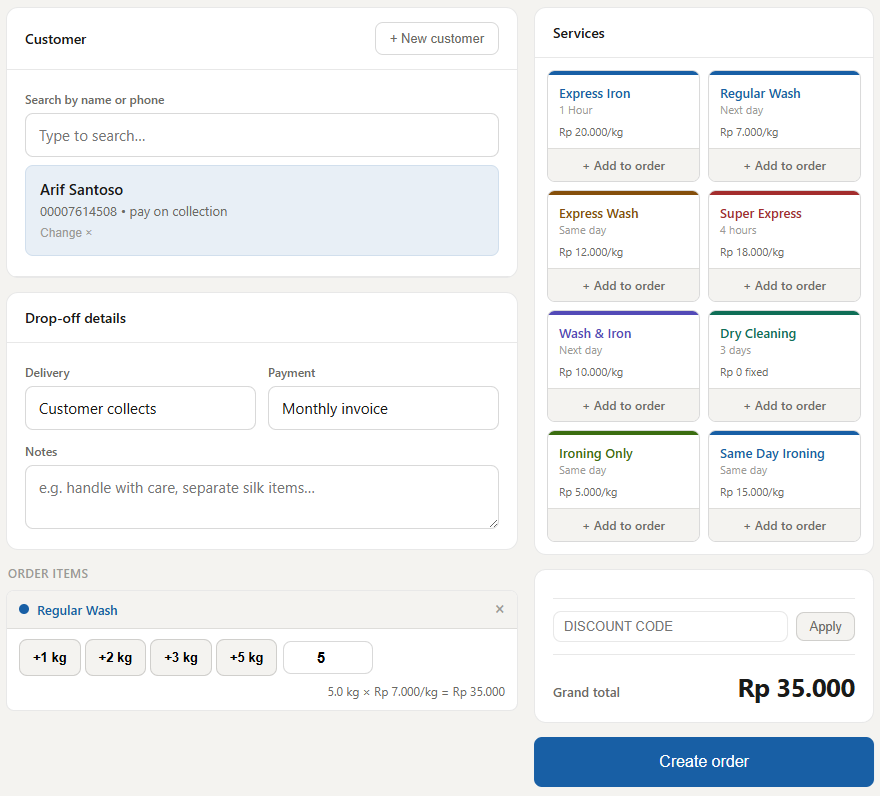
The POS counter is where customer orders are created at drop-off. Access it from yourshop.cucianku.com/pos/new
Kasir POS adalah tempat pesanan pelanggan dibuat saat penerimaan. Akses dari tokoandasendiri.cucianku.com/pos/new
Creating a new orderMembuat pesanan baru
Recording paymentMencatat pembayaran
Payments can be recorded at drop-off or collection. Open the order and click Record payment. Choose the method (cash, bank transfer, or QRIS) and enter the amount. The system marks the order as paid and records a timestamp.
Pembayaran dapat dicatat saat penerimaan atau pengambilan. Buka pesanan dan klik Catat pembayaran. Pilih metode (tunai, transfer bank, atau QRIS) dan masukkan jumlah. Sistem menandai pesanan sebagai dibayar dan mencatat cap waktu.
For pay-on-collection customers, payment is typically recorded when the customer picks up. The POS order list highlights orders with outstanding balances.
Untuk pelanggan bayar saat pengambilan, pembayaran biasanya dicatat ketika pelanggan mengambil. Daftar pesanan POS menyorot pesanan dengan saldo tertunggak.
Batch ordersPesanan batch
When a customer drops off multiple service types at once (e.g. regular wash + dry clean), you can add multiple items to a single batch at creation. Each service gets its own workflow and receipt, but they're grouped under one batch reference.
Ketika pelanggan menitipkan beberapa tipe layanan sekaligus (mis. cuci reguler + dry clean), Anda bisa menambahkan beberapa item ke satu batch saat pembuatan. Setiap layanan mendapat alur kerja dan struk tersendiri, tetapi dikelompokkan di bawah satu referensi batch.
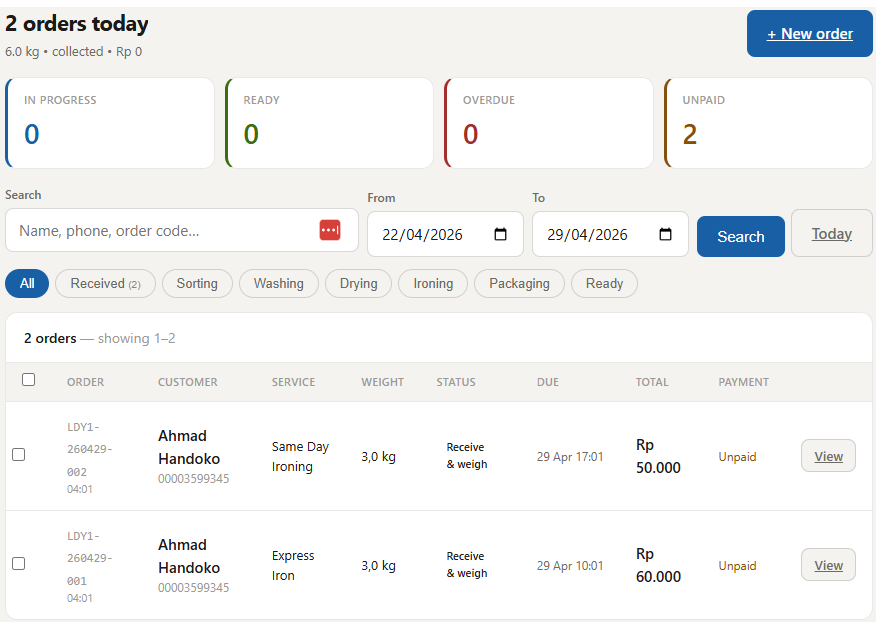
Order list & filtersDaftar pesanan & filter
The order list at /pos lets you filter by:
Daftar pesanan di /pos memungkinkan filter berdasarkan:
- StatusStatus — active, ready, collected, completedaktif, siap, diambil, selesai
- PaymentPembayaran — unpaid, partially paid, paidbelum dibayar, dibayar sebagian, dibayar
- Date rangeRentang tanggal — custom from/to date pickerpilih tanggal dari/ke kustom
- Service typeTipe layanan
On desktop, select multiple orders using the checkboxes to bulk-mark as paid (cash) or collected in one action.
Di desktop, pilih beberapa pesanan menggunakan kotak centang untuk menandai sebagai dibayar (tunai) atau diambil secara massal dalam satu tindakan.
Thermal receipt printingCetak struk termal
Two printing methods are supported — choose the right one in Branch Settings:
Dua metode cetak didukung — pilih yang tepat di Pengaturan Cabang:
- Network (TCP/IP)Jaringan (TCP/IP) — printer connected via Wi-Fi or Ethernet on the same networkprinter terhubung via Wi-Fi atau Ethernet di jaringan yang sama
- Bluetooth (BLE)Bluetooth (BLE) — connect a portable Bluetooth thermal printer directly from the browser (Chrome/Android). Uses Web Bluetooth; iOS is not supported.hubungkan printer termal Bluetooth portabel langsung dari browser (Chrome/Android). Menggunakan Web Bluetooth; iOS tidak didukung.
Set printer mode to auto to try Bluetooth first with a TCP fallback, bluetooth for BLE only, or network for TCP only.
Atur mode printer ke auto untuk mencoba Bluetooth terlebih dahulu dengan fallback TCP, bluetooth untuk BLE saja, atau network untuk TCP saja.
Kanban Workflow BoardPapan Alur Kerja Kanban
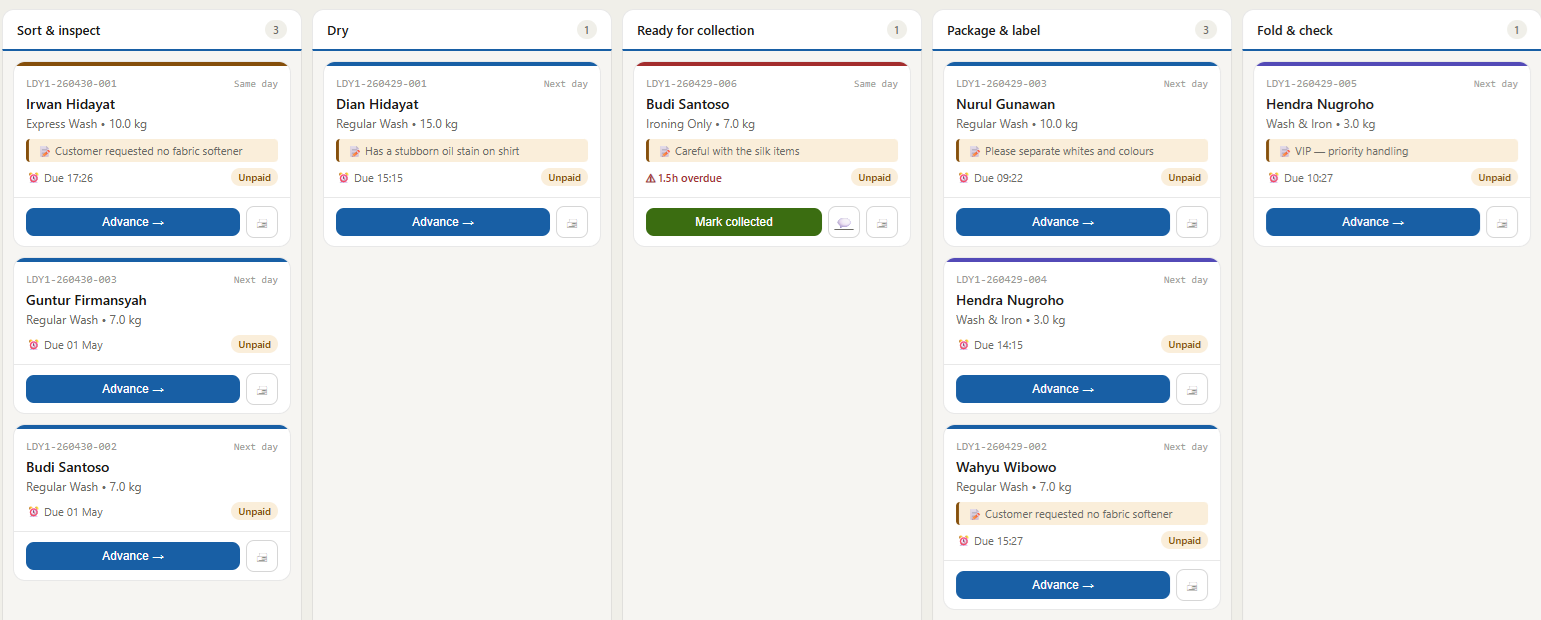
The Kanban board is designed to be displayed on a shared tablet or touch-screen monitor in the workroom. It shows every active order as a card, organised by workflow step.
Papan Kanban dirancang untuk ditampilkan di tablet bersama atau monitor layar sentuh di ruang kerja. Papan ini menampilkan setiap pesanan aktif sebagai kartu, diatur berdasarkan langkah alur kerja.
Setting up the board deviceMenyiapkan perangkat papan
Advancing an order through stepsMemajukan pesanan melalui langkah-langkah
When a step is complete, the operative taps the Advance button on the order card. A PIN pad appears. The operative enters their 4-digit PIN to sign off the step. The card moves to the next column immediately.
Ketika langkah selesai, operatif mengetuk tombol Maju pada kartu pesanan. Pad PIN muncul. Operatif memasukkan PIN 4 digit mereka untuk menandatangani langkah. Kartu berpindah ke kolom berikutnya segera.
Machine assignmentPenugasan mesin
For wash and dry steps that require a machine, the system will prompt the operative to select a machine before advancing. This links each load to a specific machine for utilization tracking.
Untuk langkah cuci dan kering yang memerlukan mesin, sistem akan meminta operatif untuk memilih mesin sebelum memajukan. Ini menghubungkan setiap muatan ke mesin tertentu untuk pelacakan utilisasi.
Overdue ordersPesanan terlambat
Orders past their SLA deadline show a red left border on the card. A daily WhatsApp digest is also sent to branch admins listing all overdue orders — configure this via the Fonnte integration.
Pesanan yang melewati tenggat SLA menampilkan batas kiri merah pada kartu. Ringkasan WhatsApp harian juga dikirim ke admin cabang yang mencantumkan semua pesanan terlambat — konfigurasikan melalui integrasi Fonnte.
Staff shift clock-in / clock-outAbsensi masuk / keluar staf
The Kanban topbar has a clock-in button. Operatives can clock in at the start of their shift and clock out at the end using their PIN. Hours are recorded in the Shift Report and are used for payroll estimates if an hourly rate is set on the staff profile.
Topbar Kanban memiliki tombol absen masuk. Operatif dapat absen masuk di awal shift dan absen keluar di akhir menggunakan PIN mereka. Jam dicatat di Laporan Shift dan digunakan untuk estimasi penggajian jika tarif per jam diatur pada profil staf.
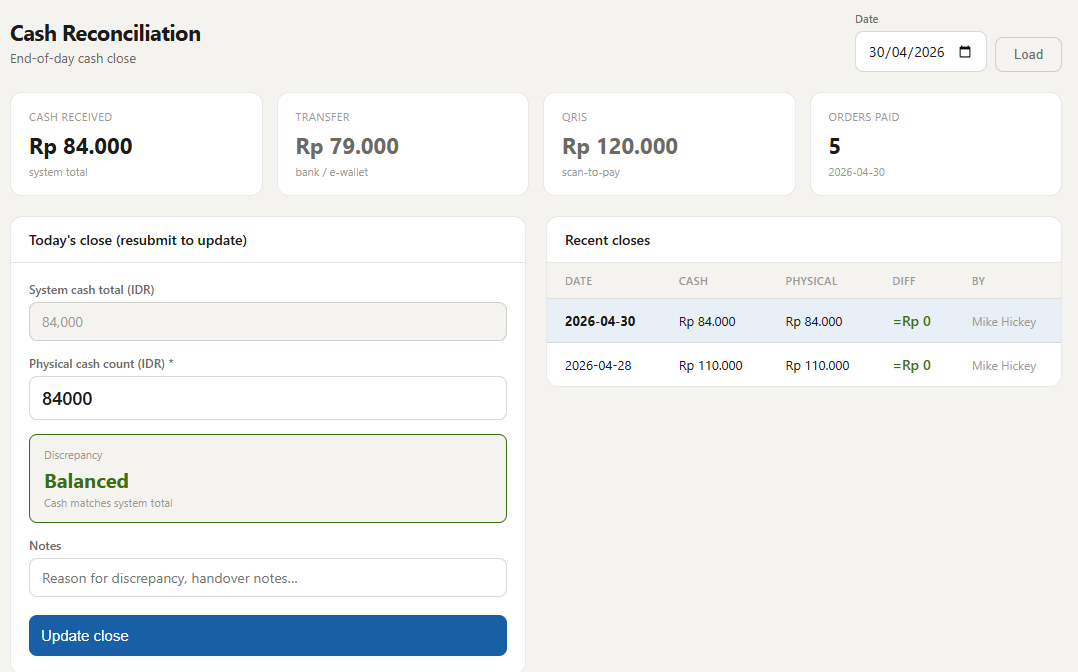
End-of-day cash reconciliationRekonsiliasi kas akhir hari
The cash close screen at /pos/close lets counter staff balance the cash drawer at end of day. Access it from Cash Close in the Operations sidebar.
Layar tutup kas di /pos/close memungkinkan staf kasir menyeimbangkan laci kas di akhir hari. Akses dari Tutup Kas di sidebar Operasi.
You can also review or re-submit closes for any previous date using the date selector at the top of the page.
Anda juga dapat meninjau atau mengirim ulang tutupan untuk tanggal sebelumnya menggunakan pemilih tanggal di bagian atas halaman.
Customers & InvoicingPelanggan & Faktur
Customer profilesProfil pelanggan
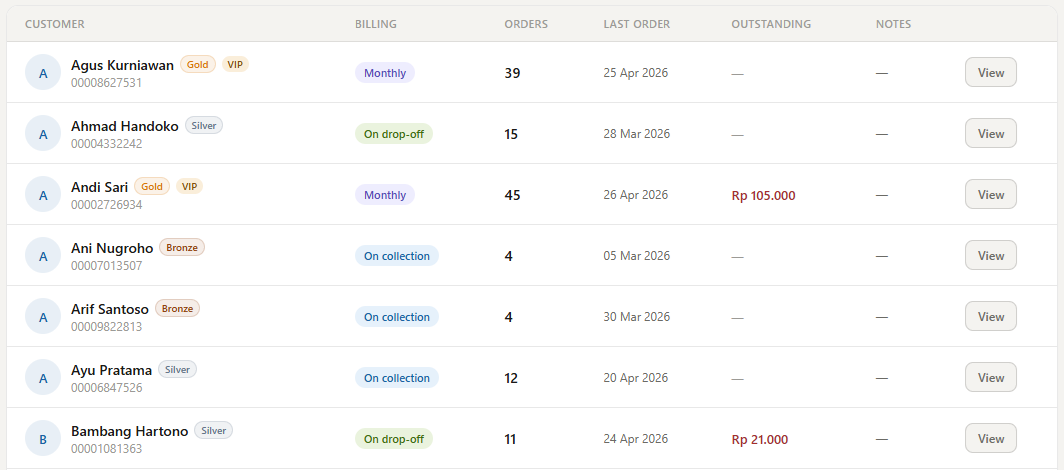
Every customer has a profile showing their full order history, outstanding balance, message log, and loyalty tier. Access the customer list at /customers.
Setiap pelanggan memiliki profil yang menampilkan riwayat pesanan lengkap, saldo tertunggak, log pesan, dan tier loyalitas. Akses daftar pelanggan di /customers.
Filter customers by billing type:
Filter pelanggan berdasarkan tipe penagihan:
- Pay on collectionBayar saat pengambilan — settle at pickup (most common)selesaikan saat pengambilan (paling umum)
- Pay on drop-offBayar saat penitipan — pay in full at the counter when dropping offbayar penuh di kasir saat menitipkan
- Monthly invoiceFaktur bulanan — bulk billing at the end of each month (hotels, offices, apartment buildings)penagihan massal di akhir setiap bulan (hotel, kantor, gedung apartemen)
Loyalty tiersTier loyalitas
Tiers are calculated automatically from each customer's total lifetime spend:
Tier dihitung otomatis dari total pengeluaran seumur hidup setiap pelanggan:
- Bronze — any paid order on filepesanan berbayar apa pun yang tercatat
- Silver — Rp 500,000+ lifetime spendpengeluaran seumur hidup Rp 500.000+
- Gold — Rp 2,000,000+ lifetime spend (auto-promotes to VIP)pengeluaran seumur hidup Rp 2.000.000+ (otomatis dipromosikan ke VIP)
Tier badges appear on the customer list, the POS search dropdown, and the customer detail page.
Lencana tier muncul di daftar pelanggan, dropdown pencarian POS, dan halaman detail pelanggan.
Monthly invoicesFaktur bulanan
For corporate customers on monthly billing, go to /invoices and click Generate invoice to bundle all unpaid orders for that customer into a single invoice with a formatted reference number (INV/2026/04/001).
Untuk pelanggan korporat dengan penagihan bulanan, buka /invoices dan klik Buat faktur untuk mengumpulkan semua pesanan yang belum dibayar menjadi satu faktur dengan nomor referensi terformat (INV/2026/04/001).
Importing & exporting customersImpor & ekspor pelanggan
Import an existing customer list from a CSV file using the ↑ Import button at the top of the customers page. Required columns: name, phone. Optional: email, address, billing_type, notes.
Impor daftar pelanggan yang ada dari file CSV menggunakan tombol ↑ Impor di bagian atas halaman pelanggan. Kolom yang diperlukan: name, phone. Opsional: email, address, billing_type, notes.
Export the current filtered list to CSV with the ↓ Export button.
Ekspor daftar yang difilter saat ini ke CSV dengan tombol ↓ Ekspor.
Supplies managementManajemen persediaan
Track detergent, fabric softener, plastic bags, and any other consumables at /supplies.
Lacak deterjen, pelembut pakaian, kantong plastik, dan konsumabel lainnya di /supplies.
Adding and editing itemsMenambah dan mengedit item
Use the side panel on desktop (or the FAB button on mobile) to add a new supply item. Set a reorder threshold — when stock falls to or below this level, the item appears in the low-stock dashboard alert and becomes eligible for the purchase order generator.
Gunakan panel samping di desktop (atau tombol FAB di mobile) untuk menambahkan item persediaan baru. Atur ambang pemesanan ulang — ketika stok turun ke atau di bawah level ini, item muncul di peringatan dasbor stok rendah dan memenuhi syarat untuk generator pesanan pembelian.
RestockingPengisian stok
Click + Restock on any item to add stock. Enter the quantity received, cost per unit, supplier name, and invoice reference. The system updates the current stock level and records the restock history.
Klik + Isi Ulang pada item mana pun untuk menambahkan stok. Masukkan jumlah yang diterima, biaya per unit, nama pemasok, dan referensi faktur. Sistem memperbarui level stok saat ini dan mencatat riwayat pengisian.
Generate a purchase orderBuat pesanan pembelian
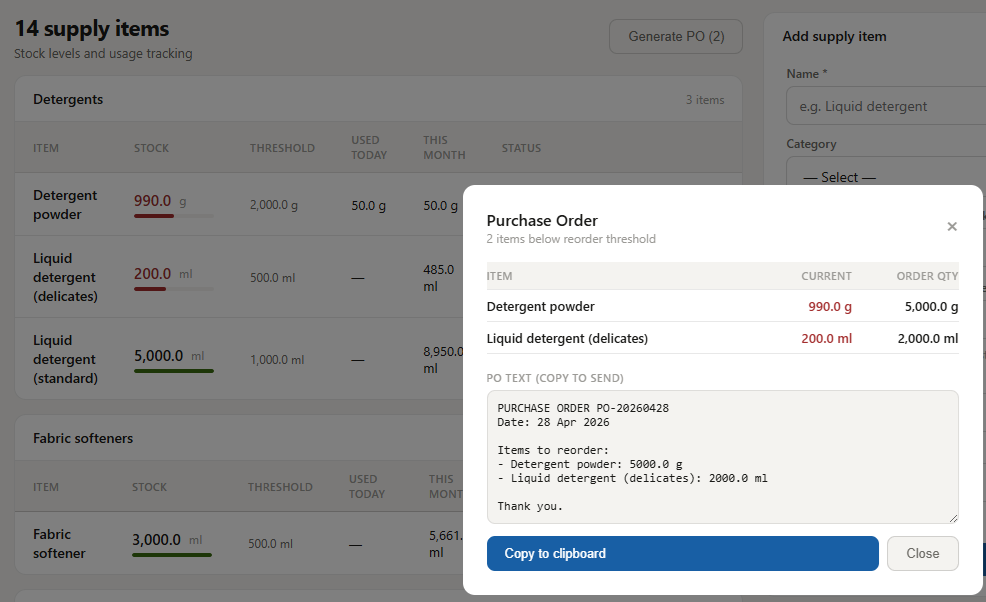
When any items are at or below their reorder threshold, a Generate PO (N) button appears at the top of the supplies list. Clicking it opens a modal showing:
Ketika item apa pun berada di atau di bawah ambang pemesanan ulang, tombol Buat PO (N) muncul di bagian atas daftar persediaan. Mengkliknya membuka modal yang menampilkan:
- Each low-stock item with current level and order quantitySetiap item stok rendah dengan level saat ini dan jumlah pesanan
- A pre-formatted PO text you can copy and send to your supplier via WhatsApp, email, or any messaging appTeks PO terformat yang dapat disalin dan dikirim ke pemasok melalui WhatsApp, email, atau aplikasi pesan apa pun
Usage trackingPelacakan penggunaan
Operatives can log supply usage directly from the Kanban board during a step. This automatically deducts from current stock. Recent usage is shown in the supplies page with links to the associated orders.
Operatif dapat mencatat penggunaan persediaan langsung dari papan Kanban selama langkah. Ini secara otomatis dikurangkan dari stok saat ini. Penggunaan terbaru ditampilkan di halaman persediaan dengan tautan ke pesanan terkait.
Expense trackingPelacakan pengeluaran
Track all operating costs at /expenses — electricity, staff lunches, equipment repairs, cleaning supplies, and anything else. Expenses are categorised and feed directly into the P&L calculation on the revenue report.
Lacak semua biaya operasional di /expenses — listrik, makan siang staf, perbaikan peralatan, perlengkapan kebersihan, dan lainnya. Pengeluaran dikategorikan dan langsung masuk ke perhitungan P&L pada laporan pendapatan.
- Add, edit, or delete expenses inline — no page reloadsTambah, edit, atau hapus pengeluaran inline — tanpa muat ulang halaman
- Filter by date range and categoryFilter berdasarkan rentang tanggal dan kategori
- Add custom categories in Settings → Expense categoriesTambahkan kategori kustom di Pengaturan → Kategori pengeluaran
- The month-to-date widget on the dashboard shows Revenue − Expenses = Net profitWidget bulan berjalan di dasbor menampilkan Pendapatan − Pengeluaran = Laba bersih
ReportsLaporan
All reports are under the Reports tab in the sidebar. Seven report types are available, each with date range filters and shortcut buttons (7d / 30d / 90d).
Semua laporan ada di tab Laporan di sidebar. Tujuh jenis laporan tersedia, masing-masing dengan filter rentang tanggal dan tombol pintasan (7h / 30h / 90h).
Revenue reportLaporan pendapatan
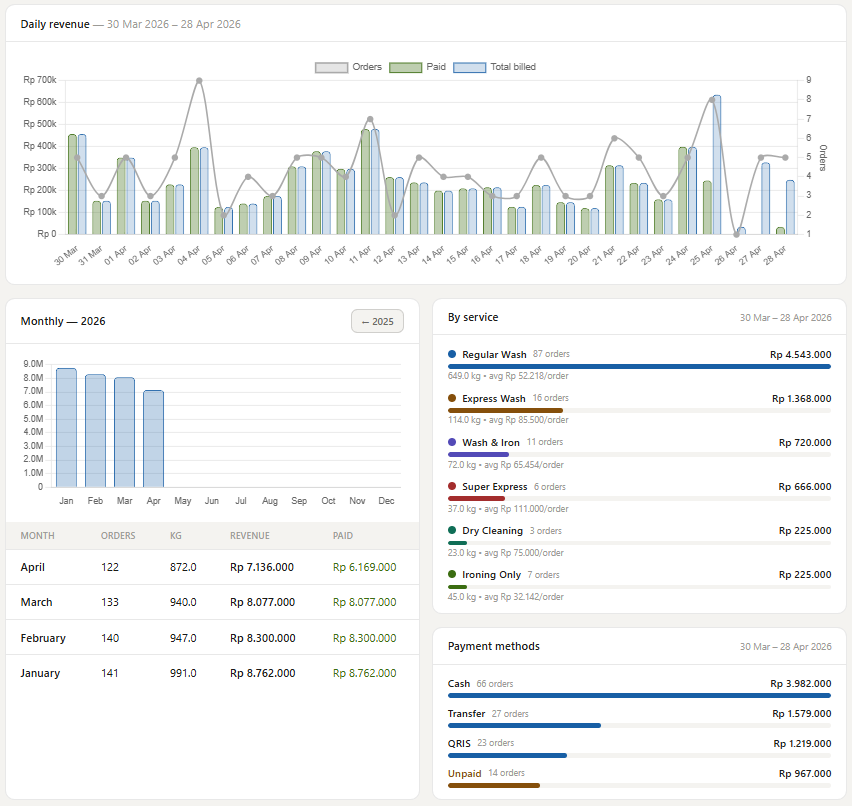
The default report at /reports. Shows:
Laporan default di /reports. Menampilkan:
- Revenue by month in a bar chartPendapatan per bulan dalam grafik batang
- Month-by-month table with orders, revenue, expenses, and net margin %Tabel bulan per bulan dengan pesanan, pendapatan, pengeluaran, dan margin bersih %
- Top 5 customers and top 5 service types by revenue5 pelanggan teratas dan 5 tipe layanan teratas berdasarkan pendapatan
- Gross margin percentage trendTren persentase margin kotor
Staff performance reportLaporan kinerja staf
At /reports/staff — per-staff summary of orders created, steps completed, kg intake, and revenue attributed. Includes hourly and day-of-week activity charts to identify your busiest periods and most productive team members.
Di /reports/staff — ringkasan per staf tentang pesanan yang dibuat, langkah yang diselesaikan, asupan kg, dan pendapatan yang dikaitkan. Termasuk grafik aktivitas per jam dan per hari untuk mengidentifikasi periode tersibuk dan anggota tim paling produktif.
Branch comparison (Super Admin only)Perbandingan cabang (hanya Super Admin)
At /reports/branches — compare revenue and order volume across all branches side by side with bar charts and a detailed table showing each branch's revenue share and change vs the prior period.
Di /reports/branches — bandingkan pendapatan dan volume pesanan di semua cabang secara berdampingan dengan grafik batang dan tabel terperinci yang menampilkan pangsa pendapatan dan perubahan vs periode sebelumnya.
Shift reportLaporan shift
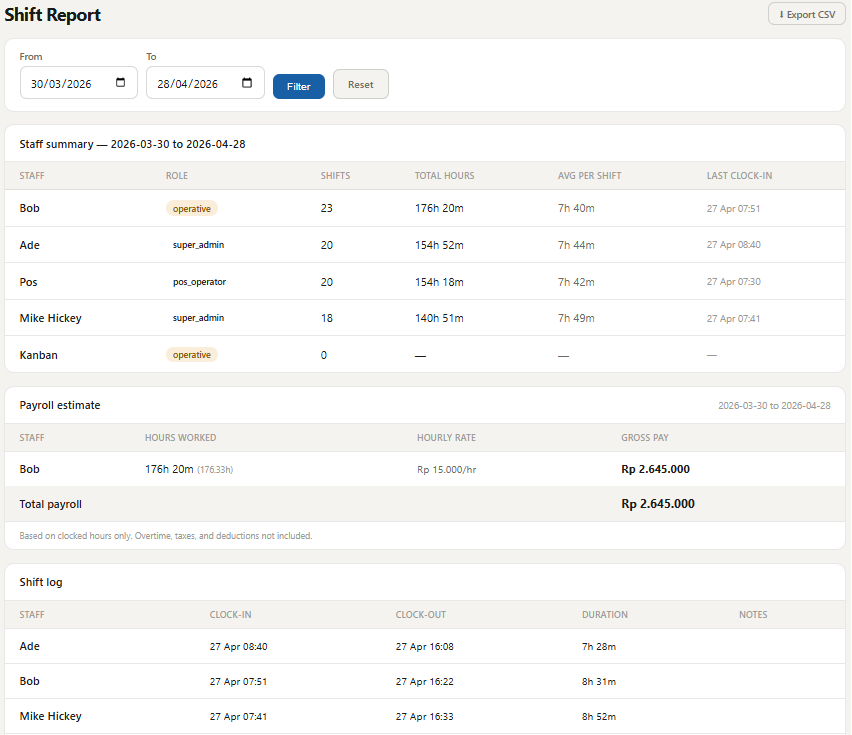
At /reports/shifts — per-staff summary of clock-in/clock-out hours and a full shift log. If hourly rates are set on staff profiles, a payroll estimate card shows gross pay for each person in the period.
Di /reports/shifts — ringkasan per staf tentang jam absen masuk/keluar dan log shift lengkap. Jika tarif per jam diatur pada profil staf, kartu estimasi penggajian menampilkan gaji kotor untuk setiap orang dalam periode tersebut.
Machine utilizationUtilisasi mesin
At /reports/machines — cycles, kg processed, and orders per machine. Daily load sparklines and horizontal bar charts help identify machines nearing end-of-life or under-utilised capacity.
Di /reports/machines — siklus, kg yang diproses, dan pesanan per mesin. Sparkline beban harian dan grafik batang horizontal membantu mengidentifikasi mesin yang mendekati akhir masa pakai atau kapasitas yang kurang dimanfaatkan.
Aging reportLaporan penuaan pesanan
At /reports/aging — active orders broken down by how long they have been in the system. Helps spot jobs that have stalled and need attention.
Di /reports/aging — pesanan aktif dipecah berdasarkan berapa lama mereka ada dalam sistem. Membantu menemukan pekerjaan yang terhenti dan perlu perhatian.
Lapsed customers reportLaporan pelanggan tidak aktif
At /reports/lapsed — customers who have not placed an order in 30, 60, or 90+ days. Use this list to send re-engagement messages via WhatsApp or to identify customers you may have lost to a competitor.
Di /reports/lapsed — pelanggan yang tidak membuat pesanan dalam 30, 60, atau 90+ hari. Gunakan daftar ini untuk mengirim pesan keterlibatan ulang melalui WhatsApp atau untuk mengidentifikasi pelanggan yang mungkin telah beralih ke pesaing.
WhatsApp notificationsNotifikasi WhatsApp
Cucianku sends automated WhatsApp messages to customers via Fonnte, a WhatsApp Business gateway. All notifications are sent from your own WhatsApp number.
Cucianku mengirimkan pesan WhatsApp otomatis ke pelanggan melalui Fonnte, gateway WhatsApp Business. Semua notifikasi dikirim dari nomor WhatsApp Anda sendiri.
Setting up FonnteMenyiapkan Fonnte
What gets sent automaticallyApa yang dikirim otomatis
| EventAcara | RecipientPenerima | TriggerPemicu |
|---|---|---|
| Order receivedPesanan diterima | CustomerPelanggan | Order created at POSPesanan dibuat di POS |
| Order readyPesanan siap | CustomerPelanggan | Order reaches the "ready" step on KanbanPesanan mencapai langkah "siap" di Kanban |
| Invoice sentFaktur dikirim | CustomerPelanggan | Admin clicks "Send invoice"Admin klik "Kirim faktur" |
| Payment reminderPengingat pembayaran | CustomerPelanggan | Admin clicks "Send reminder" on invoiceAdmin klik "Kirim pengingat" pada faktur |
| Uncollected reminderPengingat tidak diambil | CustomerPelanggan | Order ready for 24+ hours without collection (daily, 9am)Pesanan siap 24+ jam tanpa pengambilan (harian, pukul 9 pagi) |
| SLA breach digestRingkasan pelanggaran SLA | Branch adminAdmin cabang | Daily at 8:30am if overdue orders existHarian pukul 8:30 jika ada pesanan terlambat |
Message logLog pesan
Every outbound WhatsApp message (and email) is recorded in the message log, visible on each customer's detail page. Hover over any row to read the full message text. This log is your proof of communication if a customer claims they were never notified.
Setiap pesan WhatsApp keluar (dan email) dicatat dalam log pesan, terlihat di halaman detail setiap pelanggan. Arahkan kursor ke baris mana pun untuk membaca teks pesan lengkap. Log ini adalah bukti komunikasi Anda jika pelanggan mengklaim tidak pernah diberitahu.
Staff & shiftsStaf & shift
Adding staffMenambah staf
Go to /staff/new and fill in the name, email, role, and PIN. The PIN is 4 digits and is used for Kanban step sign-off and shift clock-in/out. Email and password are for the login page (POS operators and admins).
Buka /staff/new dan isi nama, email, peran, dan PIN. PIN adalah 4 digit dan digunakan untuk penandatanganan langkah Kanban dan absen masuk/keluar shift. Email dan kata sandi untuk halaman login (operator POS dan admin).
To set a payroll rate, enter an hourly rate (IDR) on the staff form. This is used exclusively for the payroll estimate in the Shift Report — the system does not process actual payments.
Untuk menetapkan tarif penggajian, masukkan tarif per jam (IDR) pada formulir staf. Ini digunakan secara eksklusif untuk estimasi penggajian di Laporan Shift — sistem tidak memproses pembayaran aktual.
Resetting staff MFAReset MFA staf
If a staff member loses access to their authenticator app, a Super Admin can reset their TOTP enrolment from the staff list. The staff member will be prompted to re-enrol on their next login.
Jika anggota staf kehilangan akses ke aplikasi autentikator, Super Admin dapat mereset pendaftaran TOTP mereka dari daftar staf. Anggota staf akan diminta mendaftar ulang pada login berikutnya.
Shift trackingPelacakan shift
Shifts are clocked via the Kanban board topbar (PIN required). View the full history in /reports/shifts. The shift log shows clock-in/out times, duration, and the staff member's name.
Shift dicatat melalui topbar papan Kanban (PIN diperlukan). Lihat riwayat lengkap di /reports/shifts. Log shift menampilkan waktu absen masuk/keluar, durasi, dan nama anggota staf.
Services & workflowLayanan & alur kerja
Service typesTipe layanan
Go to /services to manage your laundry services. Each service has:
Buka /services untuk mengelola layanan laundry Anda. Setiap layanan memiliki:
- Name and descriptionNama dan deskripsi
- Price per kgHarga per kg — used to auto-calculate order totalsdigunakan untuk menghitung total pesanan otomatis
- SLA (hours)SLA (jam) — sets the due date from order creation time. Orders past their SLA appear as overdue on the Kanban board.menetapkan tanggal jatuh tempo dari waktu pembuatan pesanan. Pesanan yang melewati SLA muncul sebagai terlambat di papan Kanban.
- WorkflowAlur kerja — the sequence of steps for this serviceurutan langkah untuk layanan ini
Editing the workflowMengedit alur kerja
Click Edit workflow on any service to manage its steps. You can:
Klik Edit alur kerja pada layanan mana pun untuk mengelola langkah-langkahnya. Anda dapat:
- Add, rename, or remove stepsTambah, ganti nama, atau hapus langkah
- Drag and drop to reorder stepsSeret dan lepas untuk mengatur ulang langkah
- Mark a step as requiring a machine (triggers the machine picker on Kanban)Tandai langkah sebagai memerlukan mesin (memicu pemilih mesin di Kanban)
- Set a step as the "ready" step — reaching this step triggers the customer's "order ready" WhatsApp notificationTetapkan langkah sebagai langkah "siap" — mencapai langkah ini memicu notifikasi WhatsApp "pesanan siap" kepada pelanggan
Branch settingsPengaturan cabang
Branch settings are at /settings/branch (Super Admin only). Key options:
Pengaturan cabang ada di /settings/branch (hanya Super Admin). Opsi utama:
Thermal printerPrinter termal
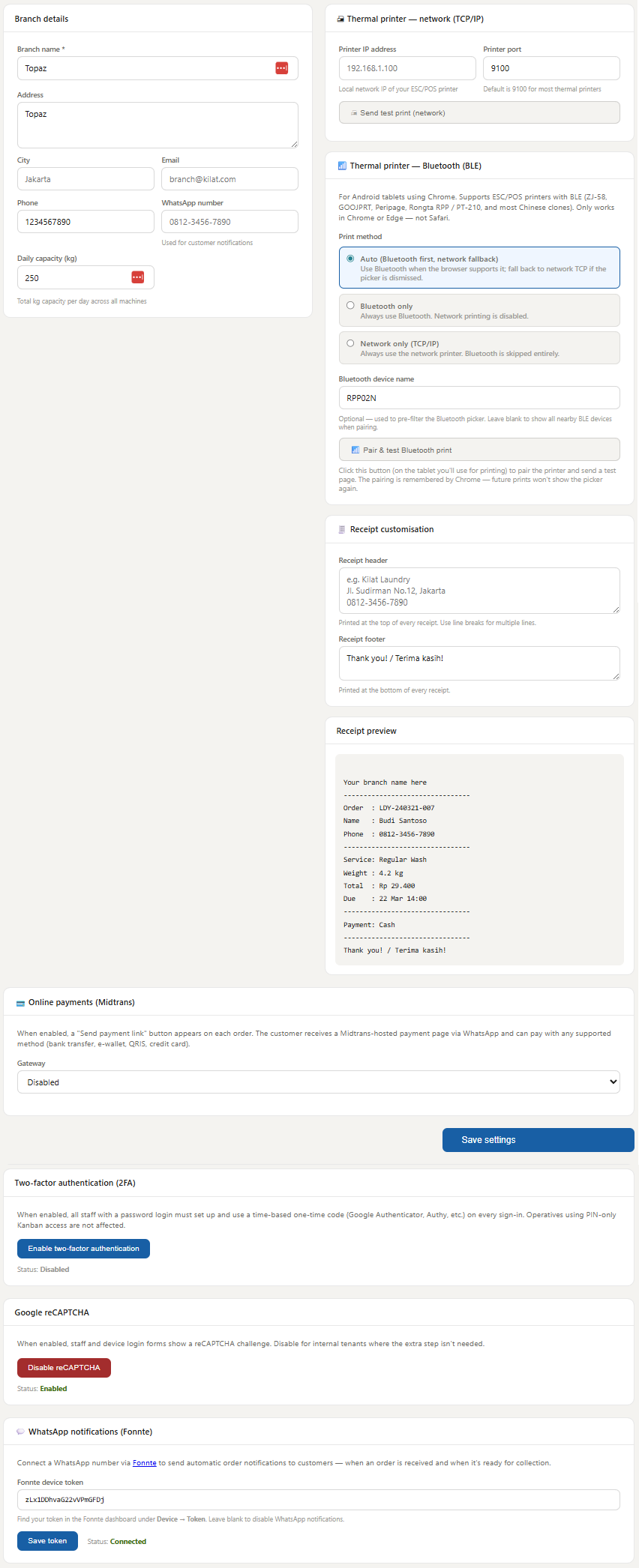
Set your printer's IP address (for network printing) or BLE device name prefix (for Bluetooth). Use the Pair & test button to verify BLE connectivity. The printer mode selector controls the fallback behaviour — auto, bluetooth, or network.
Atur alamat IP printer (untuk cetak jaringan) atau awalan nama perangkat BLE (untuk Bluetooth). Gunakan tombol Pasangkan & uji untuk memverifikasi konektivitas BLE. Pemilih mode printer mengontrol perilaku fallback — auto, bluetooth, atau network.
Two-factor authentication (MFA)Autentikasi dua faktor (MFA)
Enable mandatory TOTP (Google Authenticator / Authy) for all staff logins. When enabled, staff who have not yet enrolled are prompted to scan a QR code on their next login. MFA applies to all roles except the Kanban device account.
Aktifkan TOTP wajib (Google Authenticator / Authy) untuk semua login staf. Ketika diaktifkan, staf yang belum mendaftar diminta memindai kode QR pada login berikutnya. MFA berlaku untuk semua peran kecuali akun perangkat Kanban.
reCAPTCHA
If Google reCAPTCHA v2 keys are configured at the platform level, you can disable the widget on the login page for your specific branch if your staff find it annoying on a trusted device.
Jika kunci Google reCAPTCHA v2 dikonfigurasi di level platform, Anda dapat menonaktifkan widget di halaman login untuk cabang spesifik Anda jika staf merasa tidak nyaman di perangkat yang dipercaya.
Device PINPIN perangkat
The Kanban board shared session PIN is set here. Change it if a device is lost or a PIN is compromised.
PIN sesi bersama papan Kanban diatur di sini. Ubah jika perangkat hilang atau PIN dikompromikan.
Multiple branches (Super Admin)Beberapa cabang (Super Admin)
Add and manage branches at /branches. Each branch has its own printer settings, device PIN, and staff assignments. The Super Admin can switch between branches using the branch selector in the topbar.
Tambah dan kelola cabang di /branches. Setiap cabang memiliki pengaturan printer, PIN perangkat, dan penugasan staf sendiri. Super Admin dapat beralih antar cabang menggunakan pemilih cabang di topbar.
Mobile & offline modeMode mobile & offline
Cucianku is a Progressive Web App (PWA). You can install it on any Android or desktop device for a native-app feel and offline capability.
Cucianku adalah Progressive Web App (PWA). Anda dapat menginstalnya di perangkat Android atau desktop mana pun untuk tampilan seperti aplikasi native dan kemampuan offline.
Installing the appMenginstal aplikasi
On Android Chrome, open yourshop.cucianku.com and tap the Add to Home Screen prompt. On desktop Chrome, click the install icon in the address bar. Once installed, the app opens full-screen without a browser chrome.
Di Android Chrome, buka tokoandasendiri.cucianku.com dan ketuk prompt Tambahkan ke Layar Beranda. Di desktop Chrome, klik ikon instal di bilah alamat. Setelah diinstal, aplikasi terbuka layar penuh tanpa chrome browser.
How offline mode worksCara kerja mode offline
If your internet connection drops:
Jika koneksi internet Anda terputus:
- POS — new orders created while offline are queued in the browser's IndexedDB. When connectivity returns, queued orders sync automatically with a toast confirmation.pesanan baru yang dibuat saat offline diantrekan di IndexedDB browser. Ketika konektivitas kembali, pesanan yang diantrekan disinkronkan otomatis dengan konfirmasi toast.
- Kanban — step advances while offline are queued and sync on reconnect. A banner appears on the board when offline.kemajuan langkah saat offline diantrekan dan disinkronkan saat terhubung kembali. Spanduk muncul di papan ketika offline.
- Customer searchPencarian pelanggan — up to 500 customers are pre-cached on POS load, so you can still search for existing customers while offline.hingga 500 pelanggan di-cache sebelumnya saat POS dimuat, sehingga Anda masih dapat mencari pelanggan yang ada saat offline.
Ready to get started?Siap untuk memulai?
Free 14-day trial — no credit card required. Your account is ready in under 30 seconds.Uji coba gratis 14 hari — tidak perlu kartu kredit. Akun Anda siap dalam kurang dari 30 detik.
Start your free trial → Mulai uji coba gratis →